In Zalo Official Account (OA) operations, the menu bar is the first interactive area users see after entering a conversation. When designed well, users can find chat, purchase, or after-sales entries within one or two taps; when designed poorly, users may leave immediately. The following methods are suitable for Chinese-speaking readers focused on the Vietnam market, cross-border business, or enterprise customer operations.
Plan three core entries first
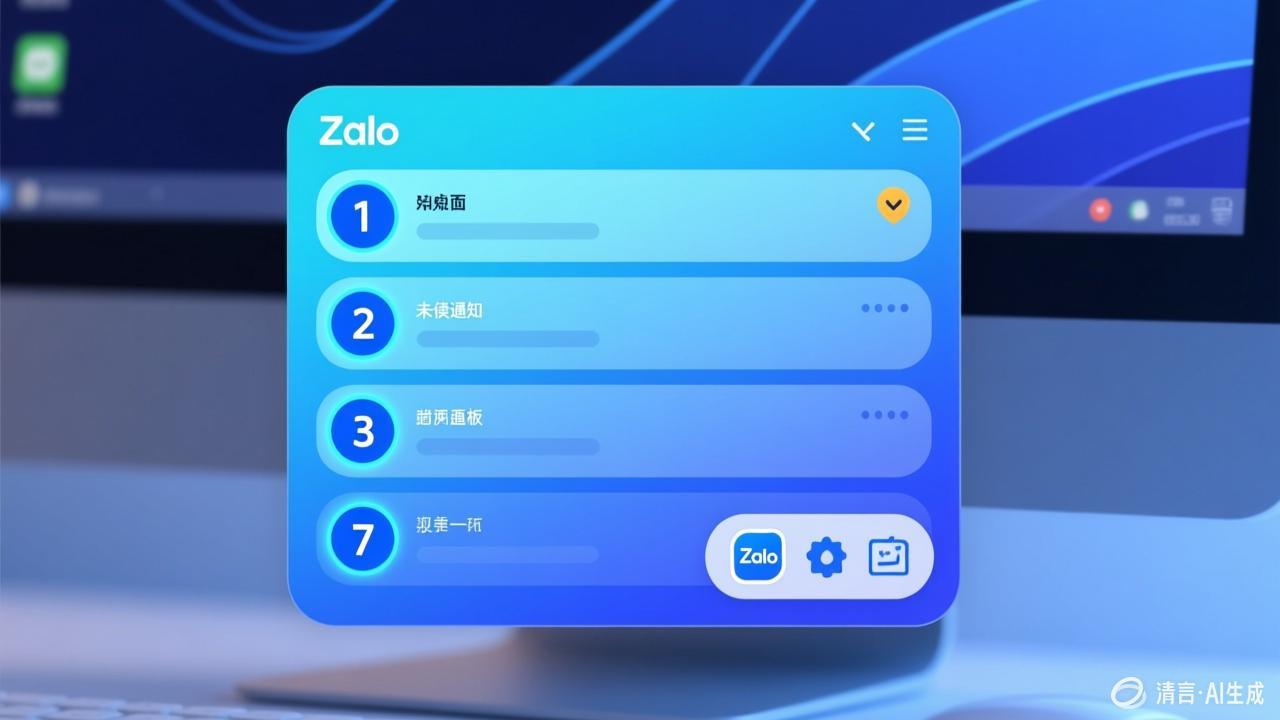
Menu bar space is limited, so prioritize the features users need most. It is recommended to plan around three goals: chat, purchase, and after-sales. The chat entry usually points to human customer service or FAQs; the purchase entry can link to a product list, order page, or promotion; the after-sales entry handles order inquiries, returns and exchanges, or complaints. Each entry name should be direct, such as "Online Chat," "Buy Now," or "Order Support," and avoid vague labels like "Learn More."
Use quick commands to reduce typing
Zalo OA supports quick commands (keyword auto-replies), where users send specific text to trigger the corresponding menu or reply. You can combine the menu bar with quick commands: prompt users in the menu to send keywords such as "chat," "purchase," or "after-sales." This way, even if the menu hierarchy is deep, users can reach it quickly by typing. It is recommended to set at least one quick command for each core entry and explain it in the welcome message.
Grouped layout and checklist
If there are more than 5 menu items, consider grouping. For example, place "Chat," "Purchase," and "After-sales" in the first-level menu, then subdivide them in the second-level menu. After designing, verify with the following 5 checkpoints:
- Can users reach human customer service within 3 taps?
- Does the purchase entry point directly to products or the order page, rather than the homepage?
- Does the after-sales entry include order inquiries and return/exchange instructions?
- Is the menu text short and easy to understand, without internal jargon?
- Do quick commands cover the main functions in the menu?
Specific steps
In the Zalo OA management backend, set up the menu bar as follows:
- Log in to the OA management backend and go to the "Menu" or "Interaction" settings.
- Create first-level menu items, keeping names within 4-6 Chinese characters.
- Choose an action type for each menu item: send message, open link, or call quick command.
- If second-level menus are needed, ensure each sub-item points to a clear page.
- After saving, use a personal Zalo account to test whether each entry's redirect and reply work properly.
When testing, note whether links open properly on mobile and whether quick commands trigger the correct replies. If an entry has a low click-through rate, adjust its name or position.
Keep the menu simple and updated
The menu bar is not better when it is richer. Each additional entry increases the user's choice cost. It is recommended to review menu data quarterly, remove low-usage items, and focus resources on the three core paths: chat, purchase, and after-sales. At the same time, during promotions, you can temporarily add campaign entries and restore them promptly afterward.
For cross-border business, menu text is recommended to be primarily in Vietnamese, with Chinese as a supplement, or set according to user language preferences. Zalo OA itself provides multilingual support, but menu content needs to be maintained manually. Keep entries clear and commands effective, and users can complete chat, purchase, and after-sales more quickly.